Entering Style Information to be Exported to Shopify
Add images, prices and other important style information in Indigo8 Enterprise and export it to Shopify with a single click.
Step-by-step guide
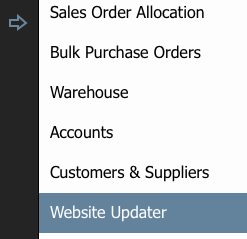
1 Click on the arrow and select Website Updater
2. Choose the relevant collection from the tabs if you have already created collection tabs
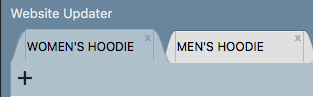
OR
Click on the + to enter the name of your collection

Important
Note that you can create sub-collections by clicking on the + in the row below the main tab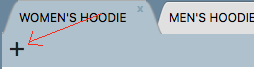
3. Open your Add and Search Products screen on the left side of your screen. Open the relevant styles and drag and drop them into the Website Updater screen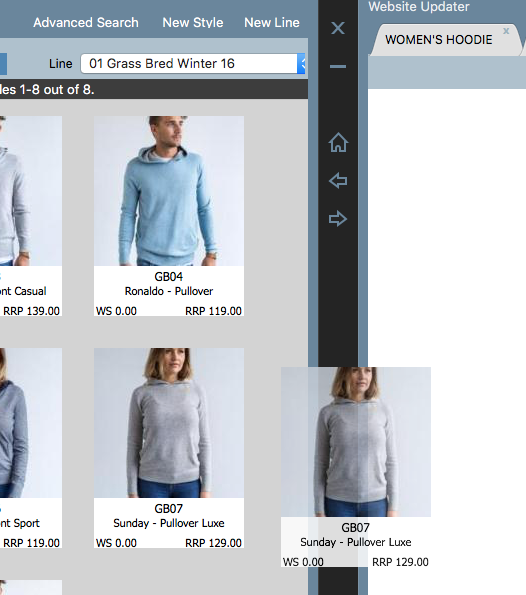
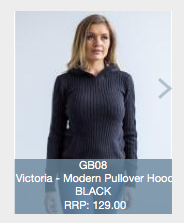
4. Click the style for which you wish to add and edit information, and the edit panel will open to the right
5. Now add and edit information
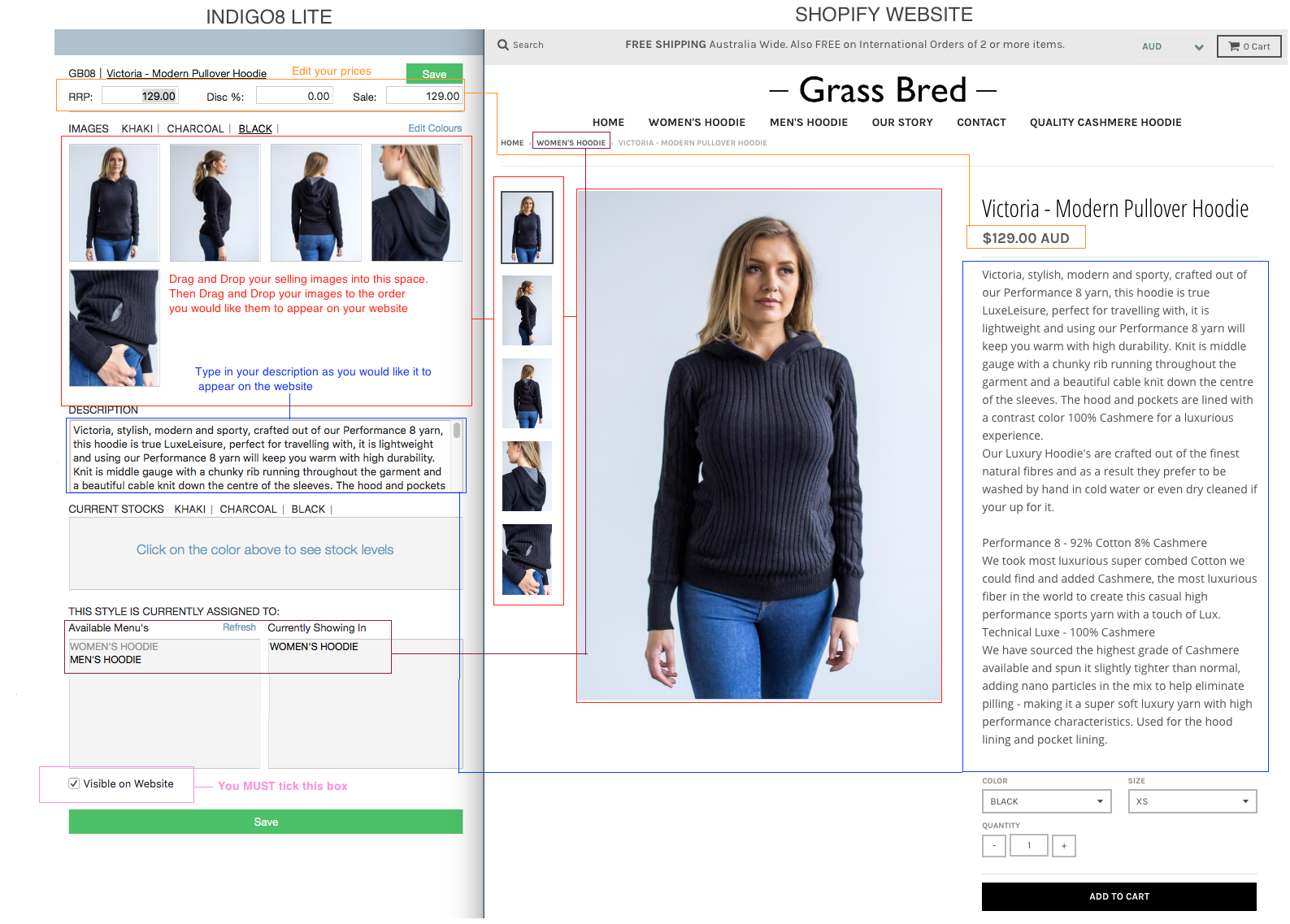
6. Click the green Save button
7. Once you've repeated the above-mentioned steps for all your styles, you will be ready to send this information straight to Shopify. Select the styles you wish to export
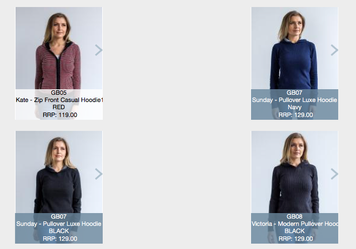
8. Click Export to Shopify button

9. A new window will appear showing the transfer of the styles to Shopify. It will notify you when the transfer is complete.
Important!
If you had an existing collection in Shopify, once the import is complete you will have two sets of styles: the styles you created in shopify and the styles you created in Indigo8 Lite. Make sure you delete the styles you originally created in Shopify leaving only the styles you created in Indigo8
Related articles